
RTA Integration process (CAMS and KFintech)
RTA Integration is an important and powerful tool for all partners, it not only gives all details of the investors but also can help to track investments on a real-time basis and manage the portfolio in a holistic way.
Advantages of RTA integration:
Immediately after RTA integration is processed, all the clients will be added to your dashboard. No need to manually add or send them referral links.
- Free tracking interface
Prerequisites:
- Before initiating the RTA integration process, the partner must have valid login credentials for both:
- CAMS
- KFINTECH
- Only with valid credentials can the feeds be successfully received and processed.
Note
After following the below steps, it will take 12-24 hours to show the feeds in your partner dashboard
Ensure CAMS and Karvy credentials are correctly mentioned
This RTA integration process can be done for Gmail domain mail ids only as the auto-forwarding option is not enabled in other domains
For tracking client's investments in other ARN, please click here
Once the RTA integration process gets completed, support ticket can be raised, we will generate the feeds from our end.
To initiate RTA integration, please follow the below steps:
STEP 1:
Login to partner dashboard (https://partner.assetplus.in/)
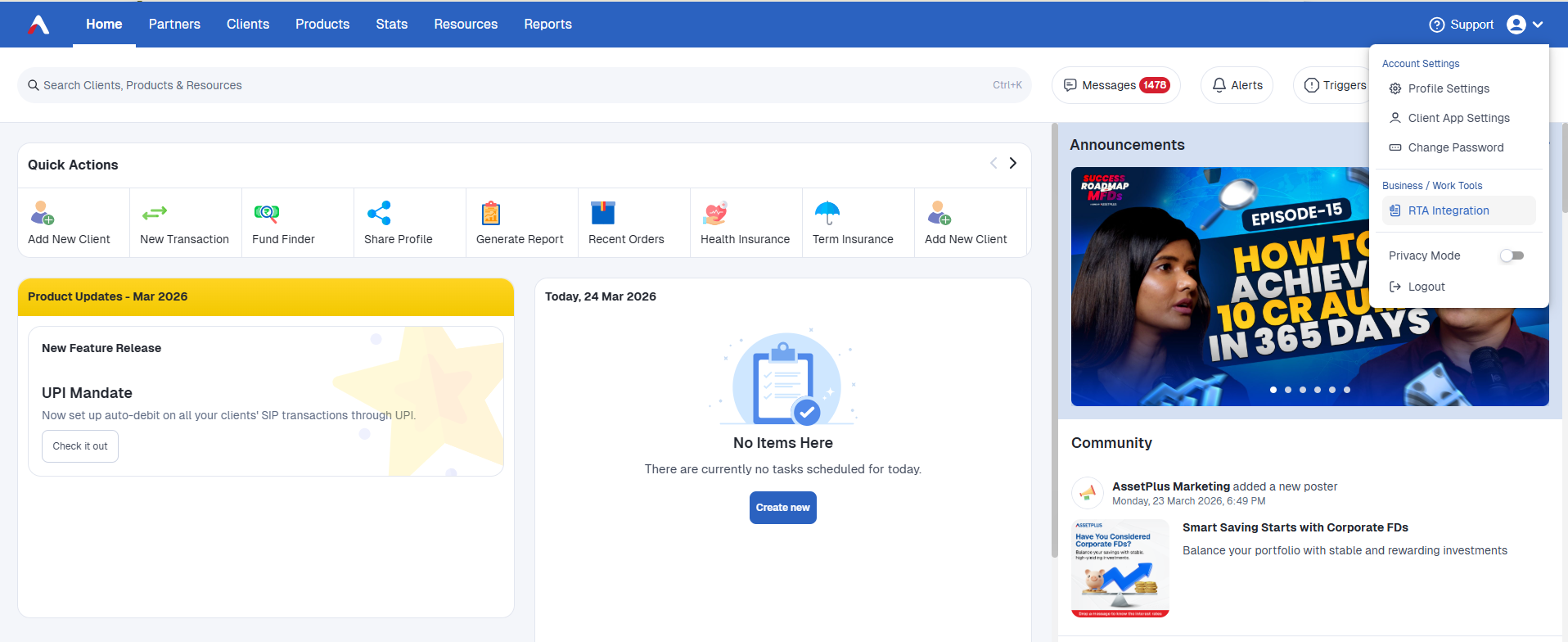
Click on Settings Icon -> RTA Integration
STEP 2:
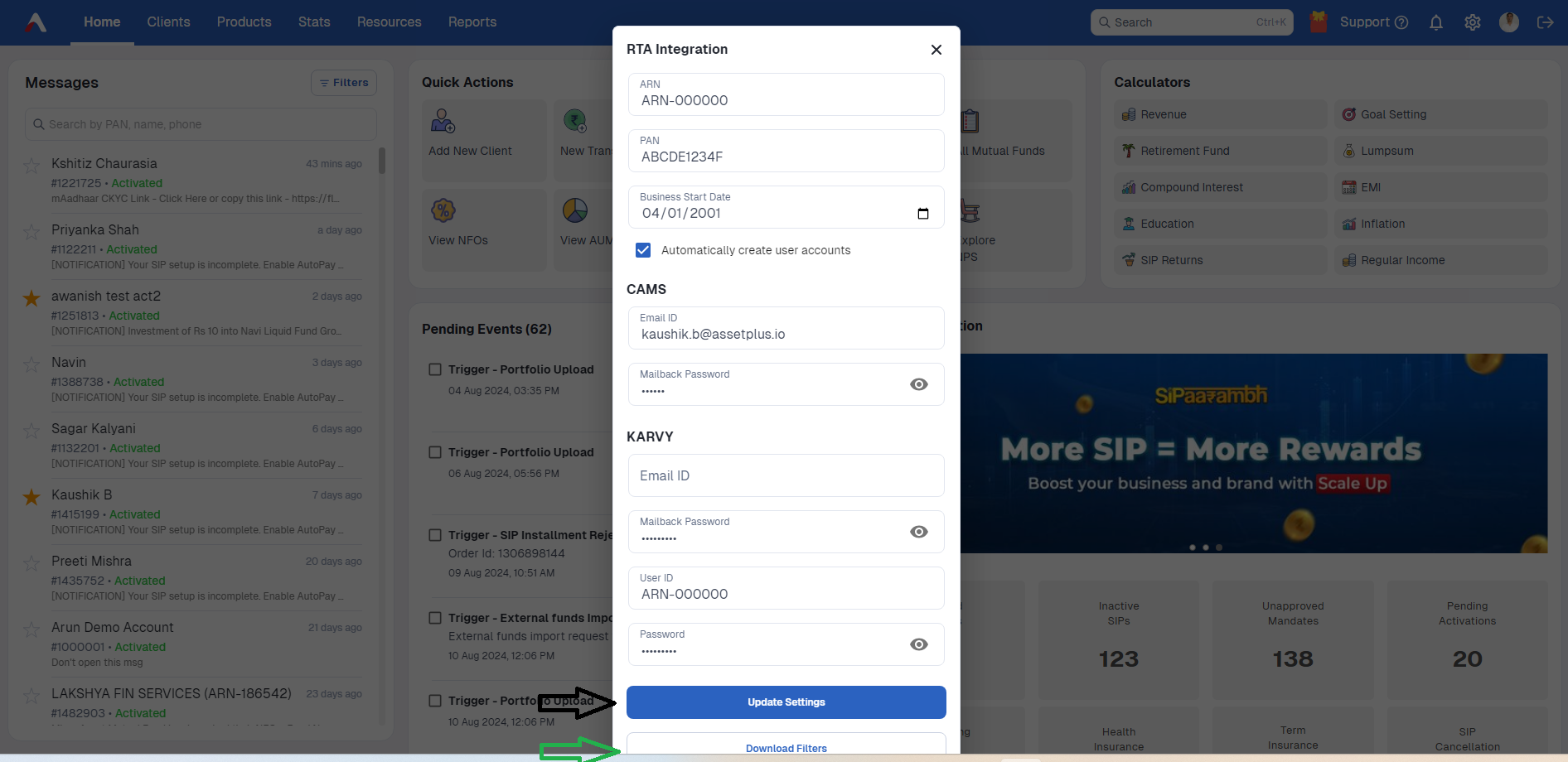
Fill in all the required details, such as ARN Number, PAN number, Business start date, CAMS and Kfintech details. Also, click the check box that states Automatically create user accounts to create accounts of all existing clients.
For CAMS, the password needs to be entered in mailback password. If you do not have a password for CAMS, please enter 123456 as a password.
For Kfintech, the mailback password and password mentioned in the Kfintech section are the same. Please enter the same passwords for both sections.
If you don't have any of the KRA's, the fields can be left blank.
STEP 3:
After filling it up, click on update settings and then on download filters as shown above.
STEP 4:
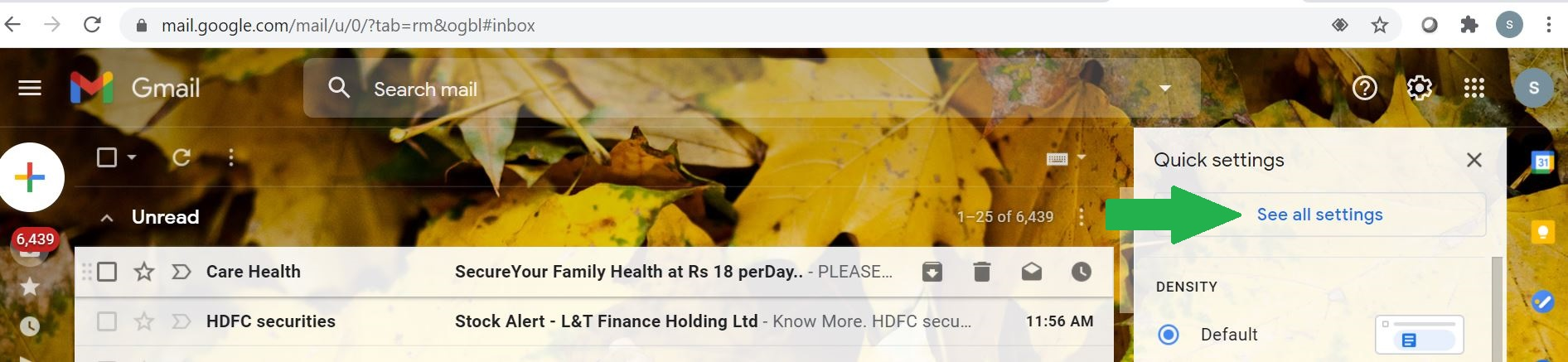
Login to your Gmail id. Then click on settings ->see all settings
STEP 5:
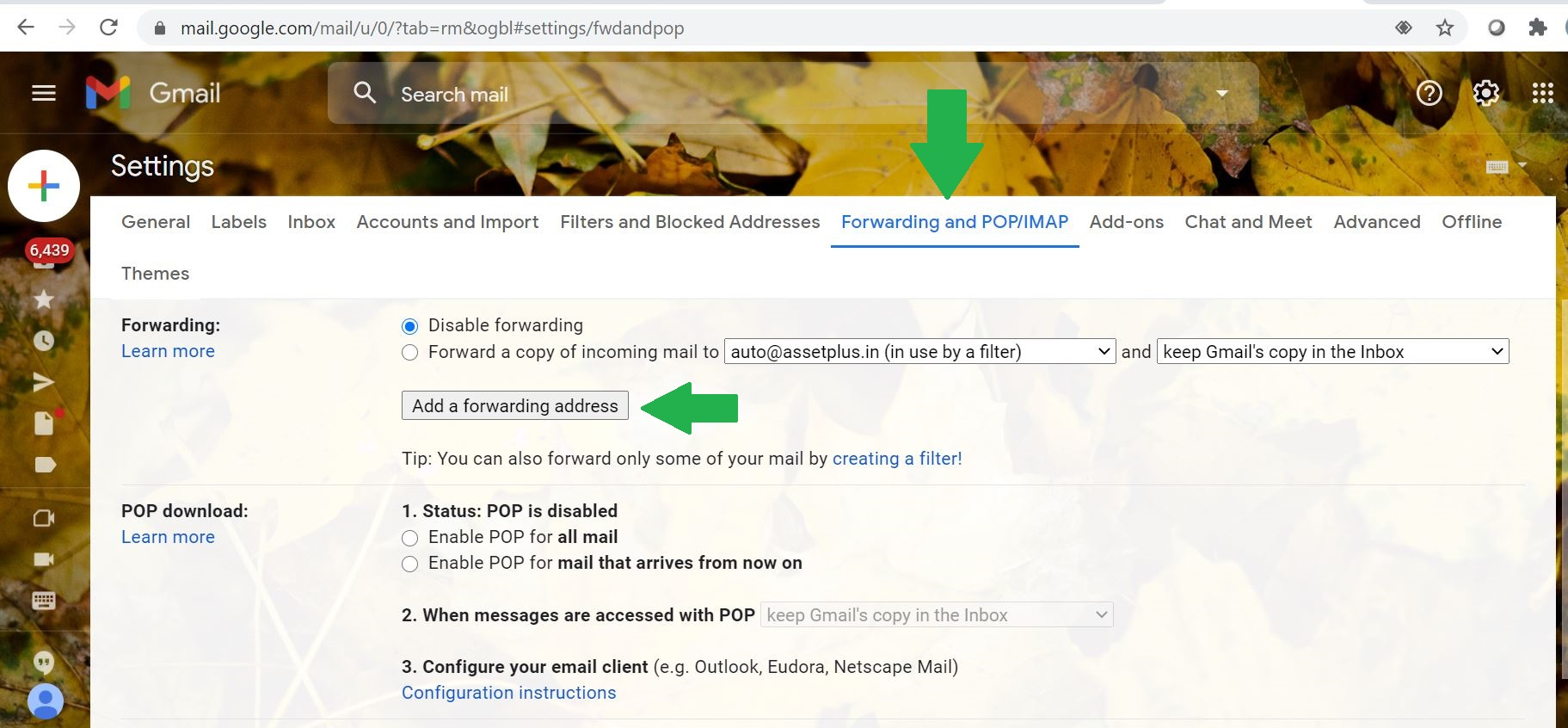
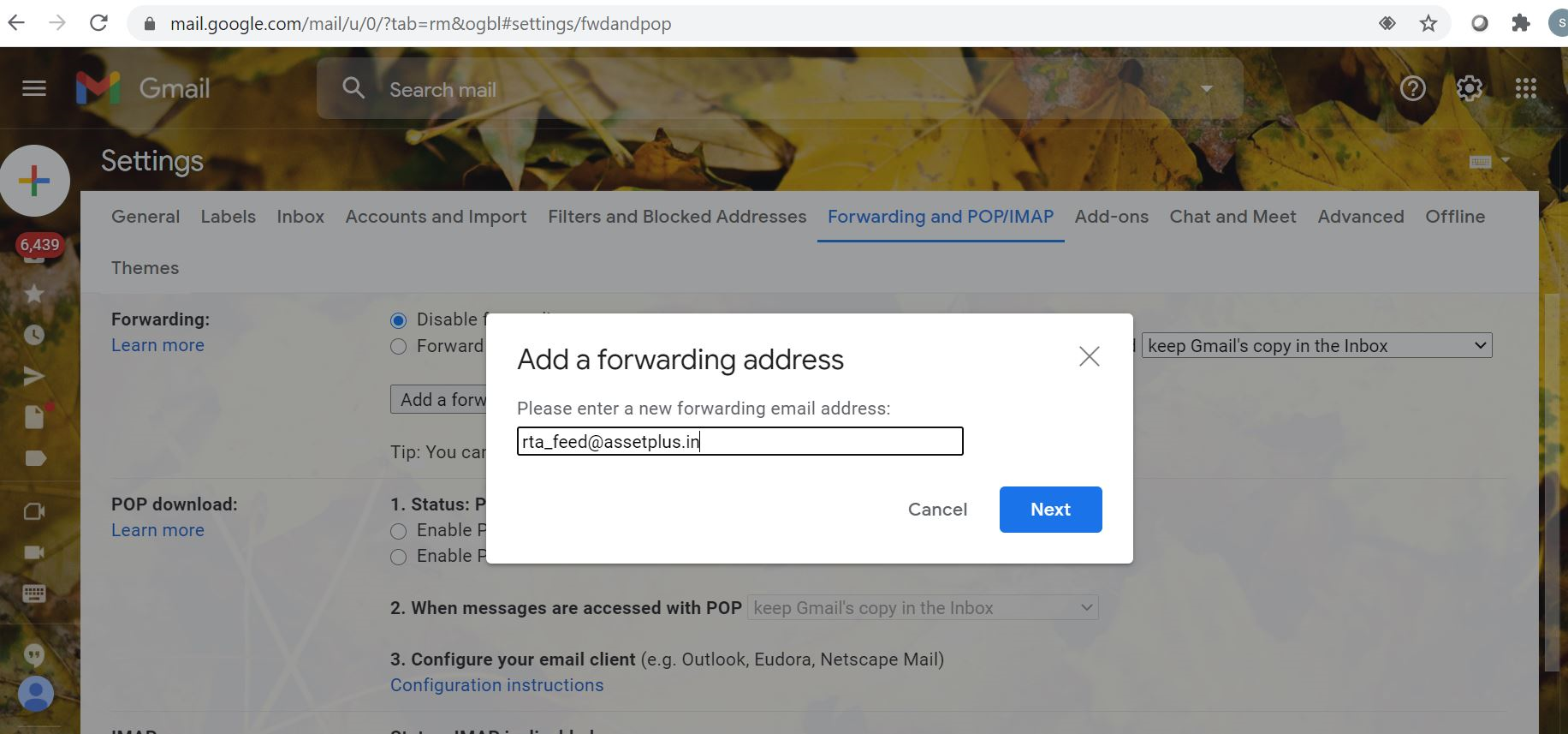
Click on Forwarding and POP/IMAP -> Add a forwarding address
STEP 6:
Add the forwarding address as rta_feed@assetplus.in
Click on next.
STEP 7:
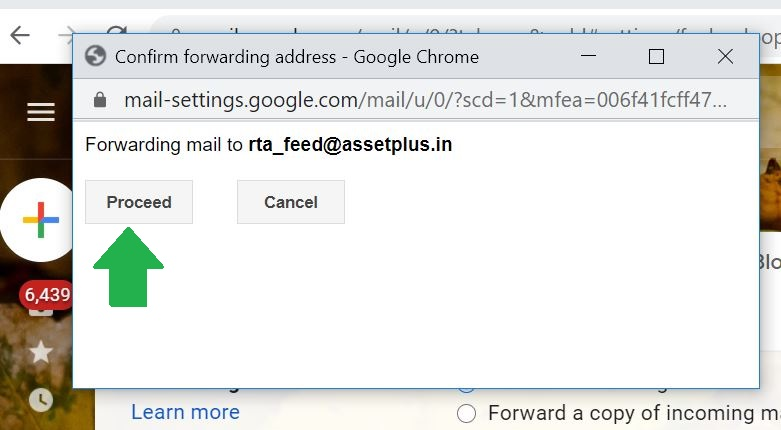
Click on proceed and then OK.
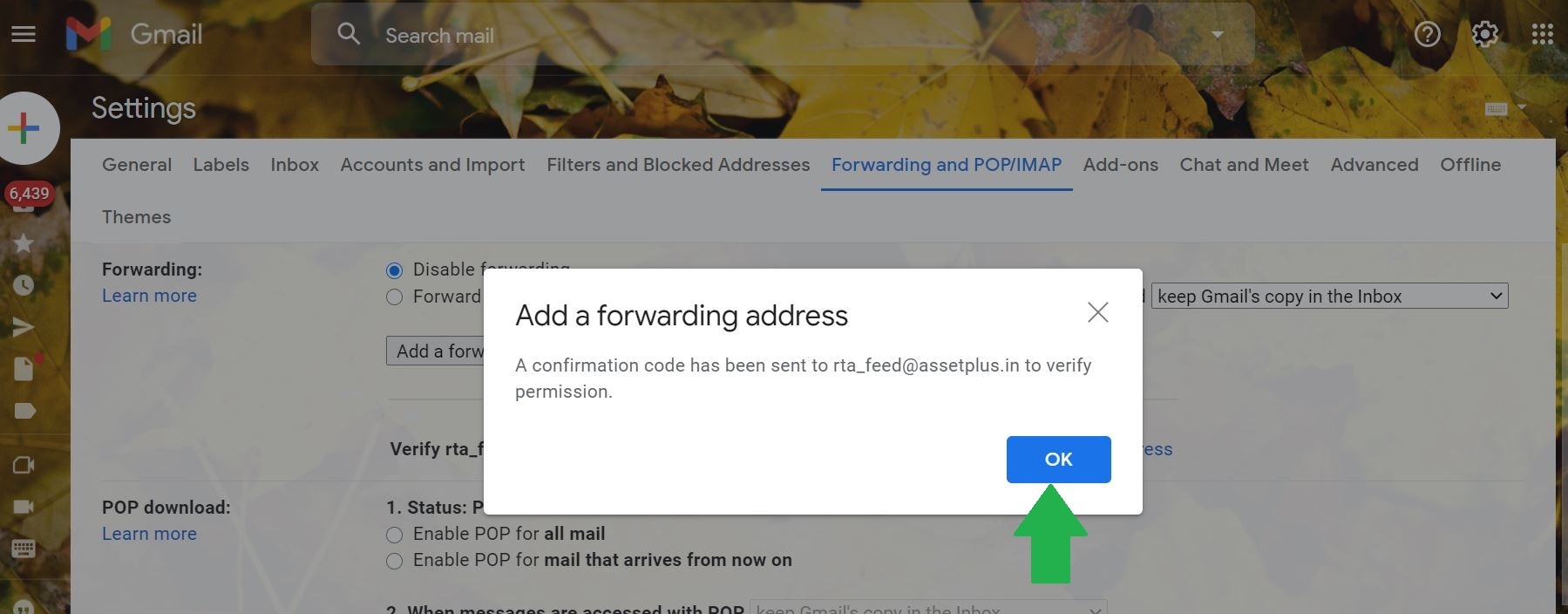
STEP 8: Assetplus approves the Forwarding Mail, post that kindly refresh the Mail box.
STEP 9:
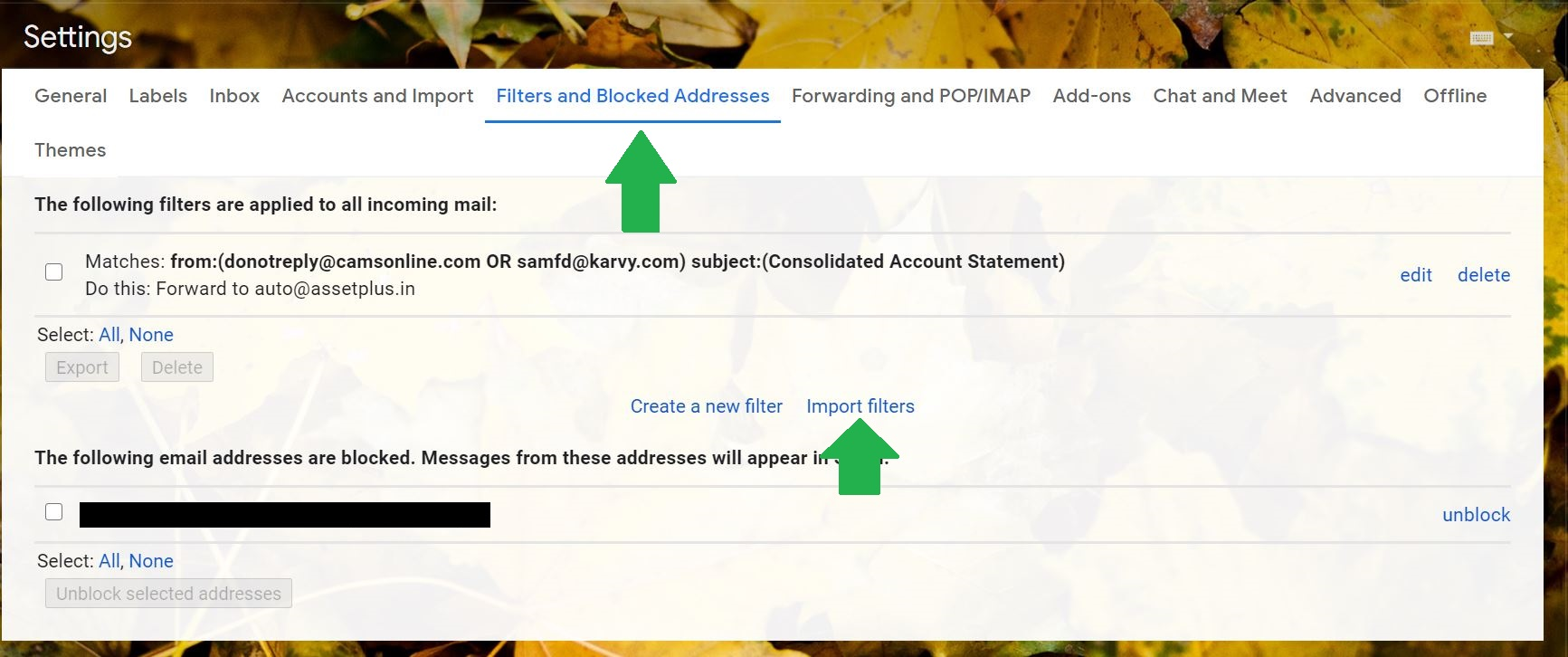
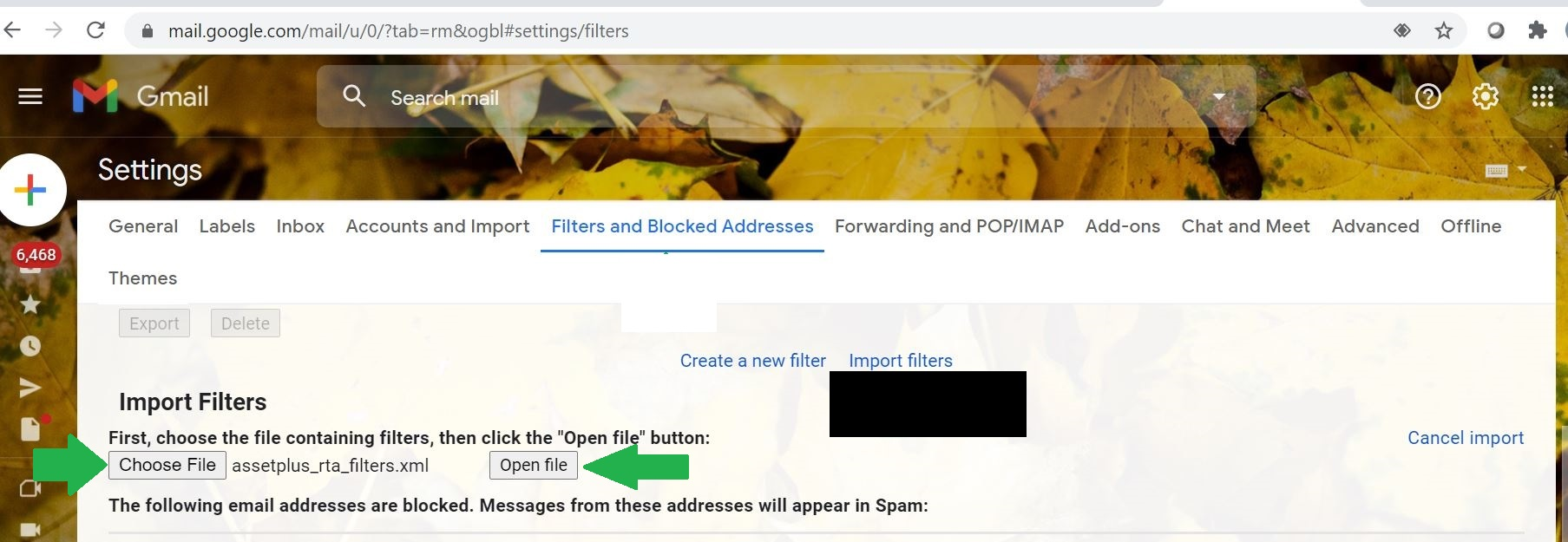
Click on Filters and Blocked Addresses -> Import filters
STEP 10:
Click on choose file and attach the downloaded file (from step 4). Once the file is uploaded click on open file.
STEP 11:
Click on Create Filters. And the process gets completed.
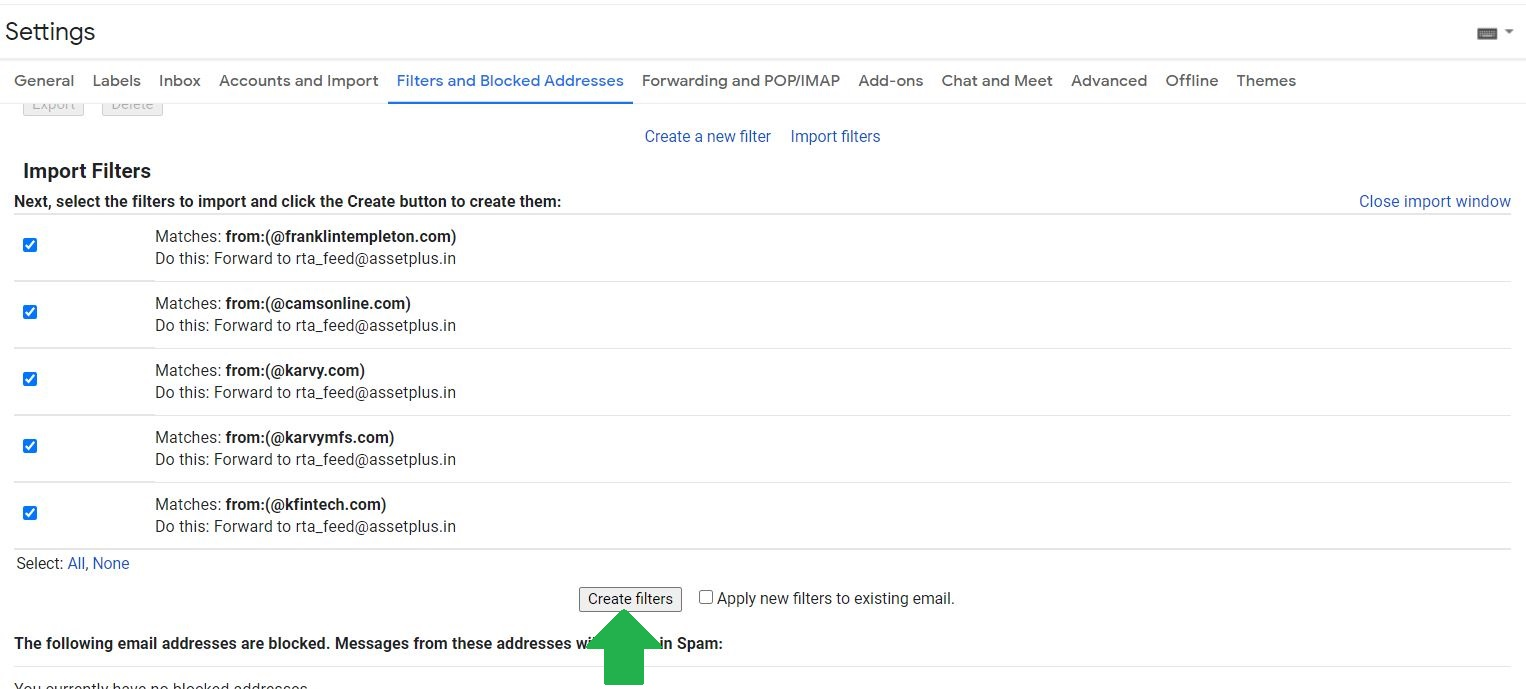
Post this step, RTA Integration process gets completed.
STEP 12:
Kindly create a Support Ticket for Feed generation post that Feeds will be reflecting in the client dashboard in External Investment / Feeder.