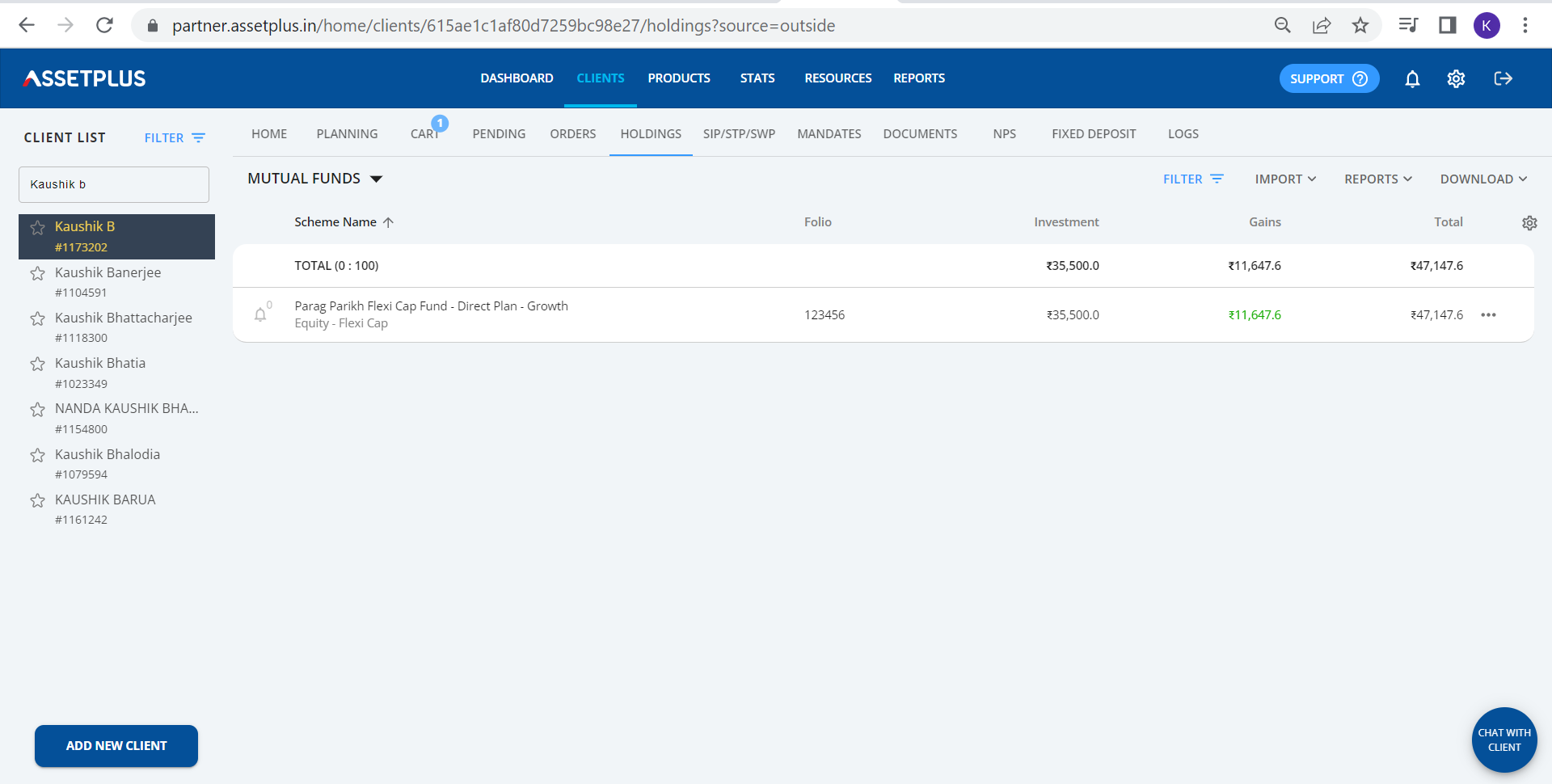
To import and track your client's external investments under other ARN or direct funds, please follow the below steps:
Method 1- MFC CAS Import (QR Method)
1. Access Partner Dashboard
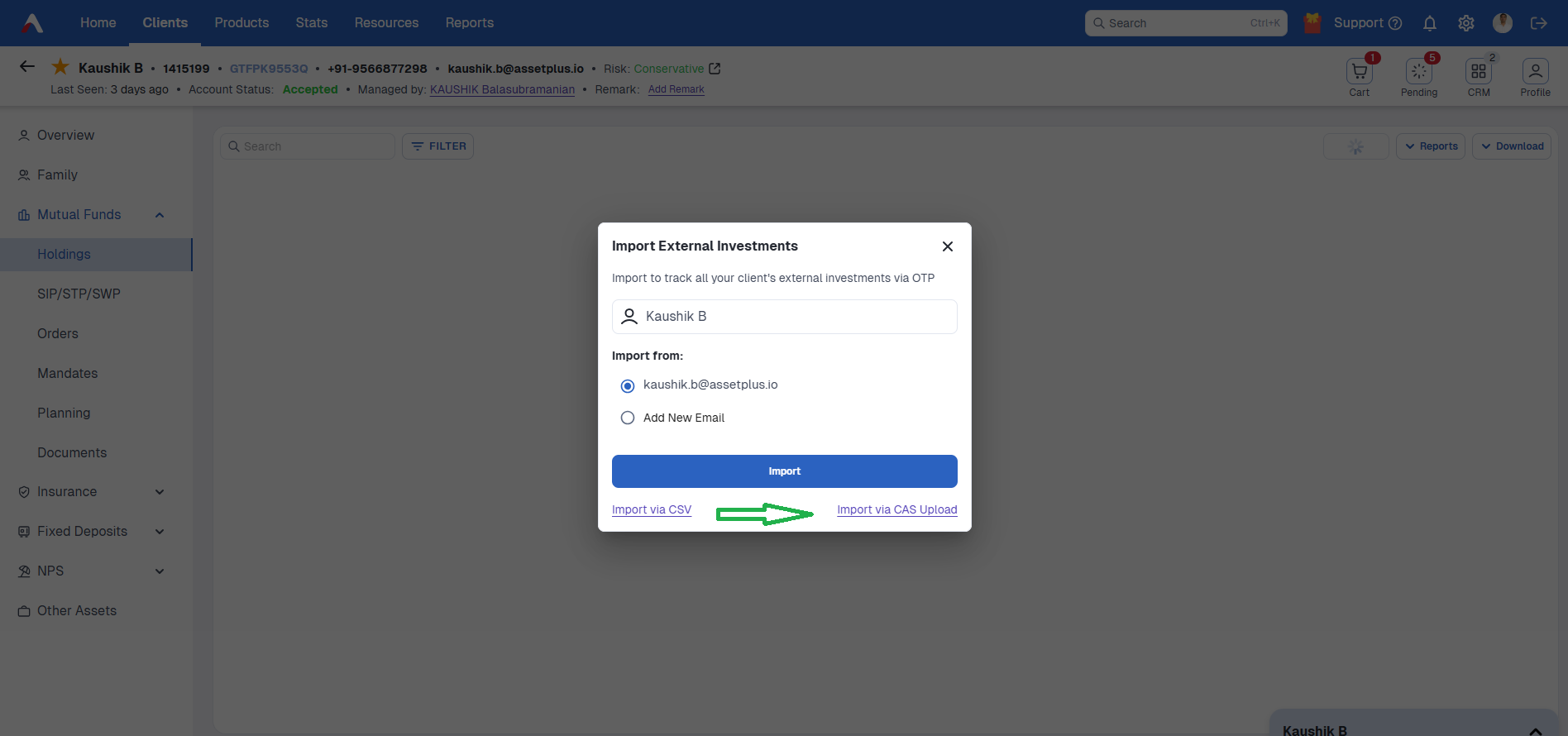
Go to the dashboard, select the client for whom you want to track external funds, and click on Mutual Funds -> Holdings -> Import CAS.

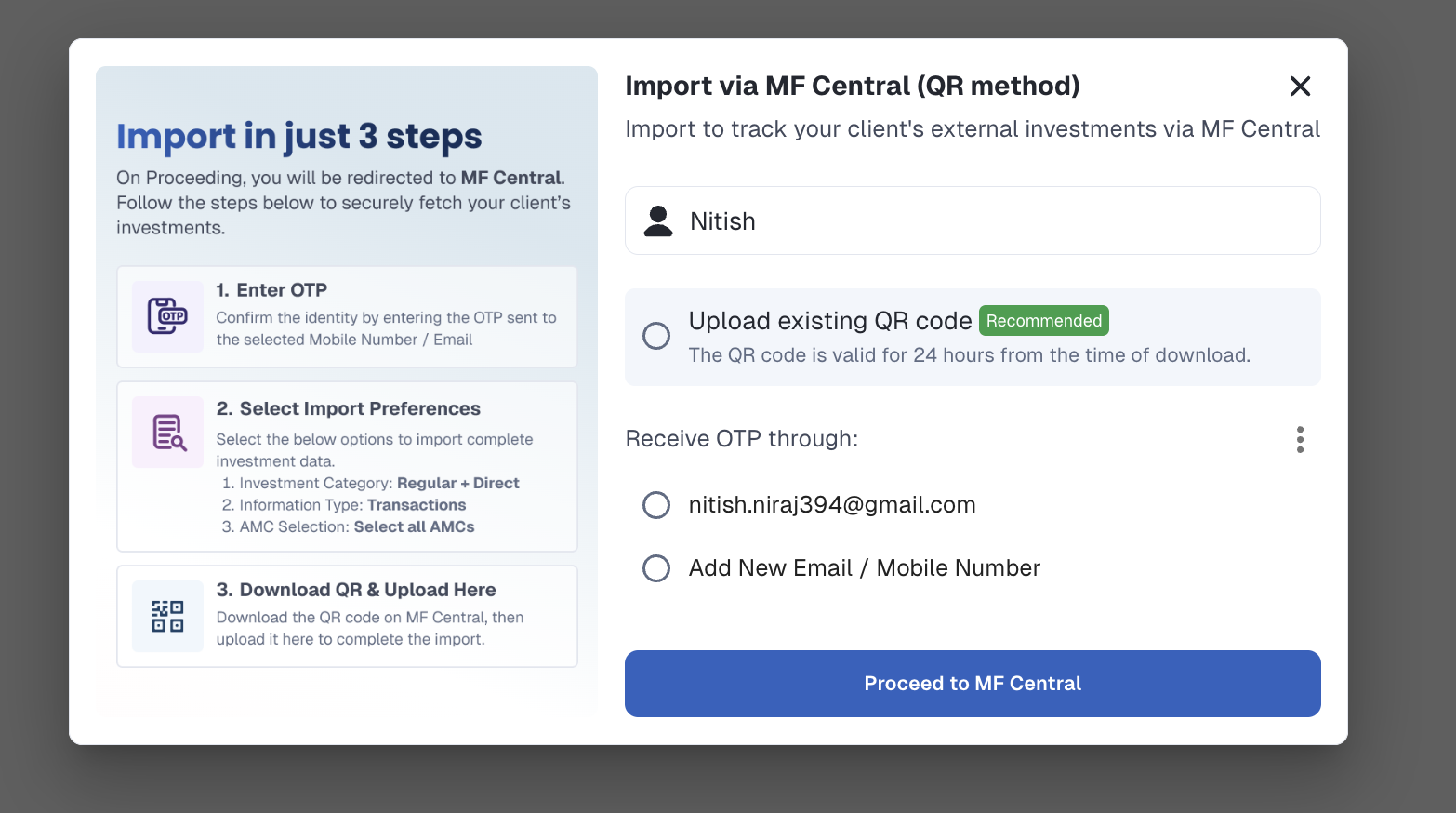
2. Select Contact Details
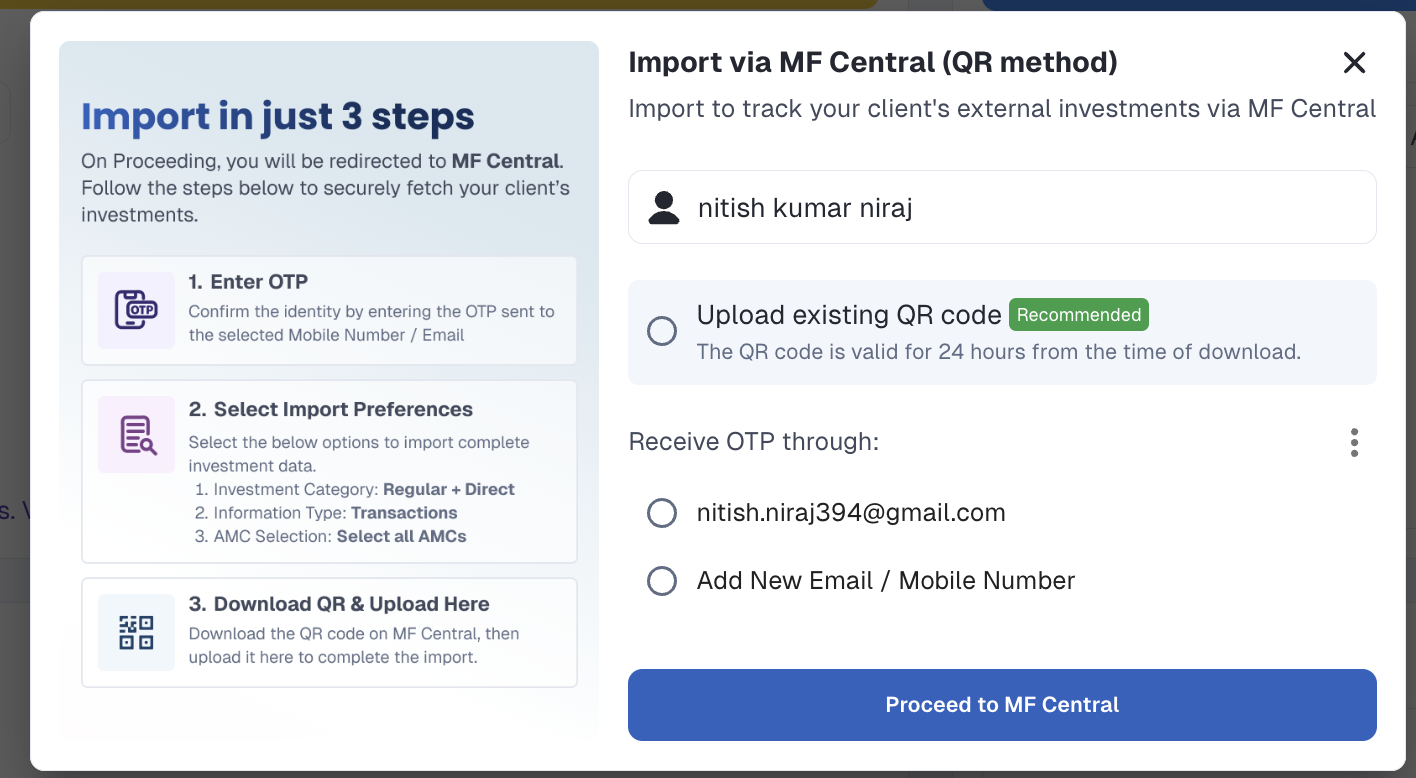
Select your client's registered email ID or add a new email ID/Mobile number for which you want to import external investments.
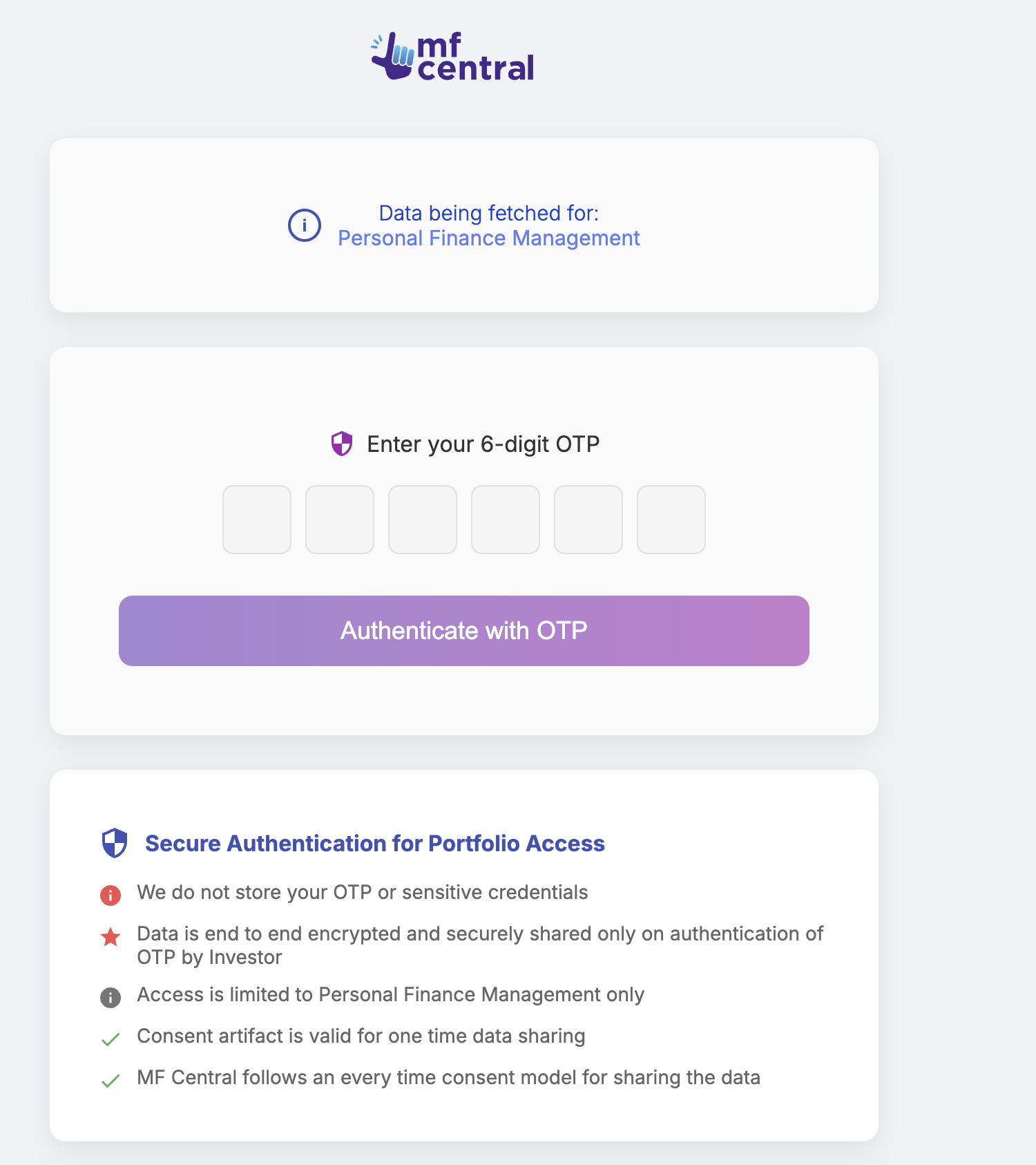
3. OTP Verification (MF Central)
The page will be automatically redirected to the MF Central page for OTP verification.
Enter the 6-digit OTP sent to the selected email ID of the client.
4. Select Import Preferences
Choose Import Preferences on MF Central.
Proceed with the pre-filled options and click on 'Select All AMCs' to import complete investment data.
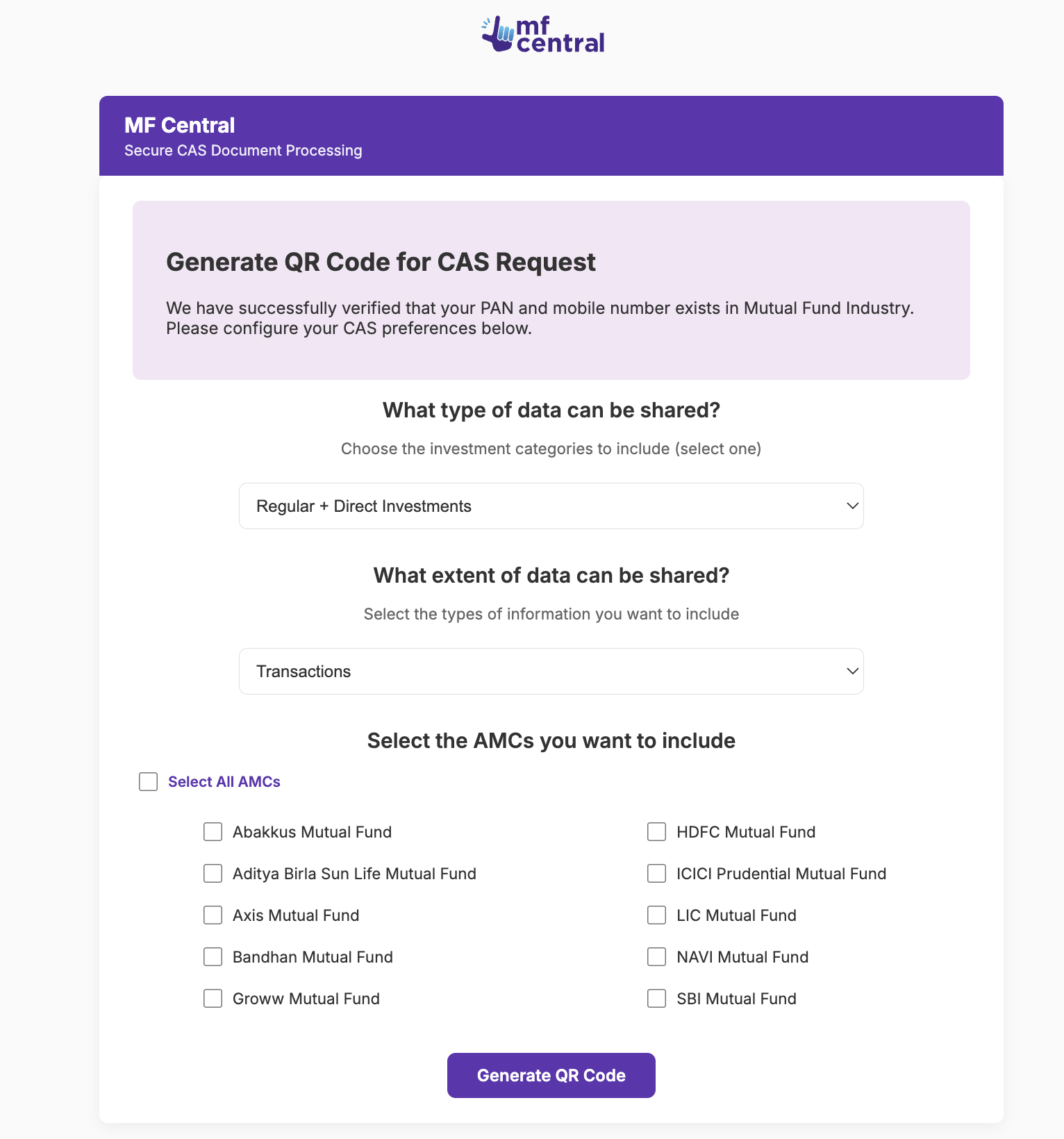
5. Generate & Download QR Code
Click on 'Generate QR Code' after confirming the preferences.
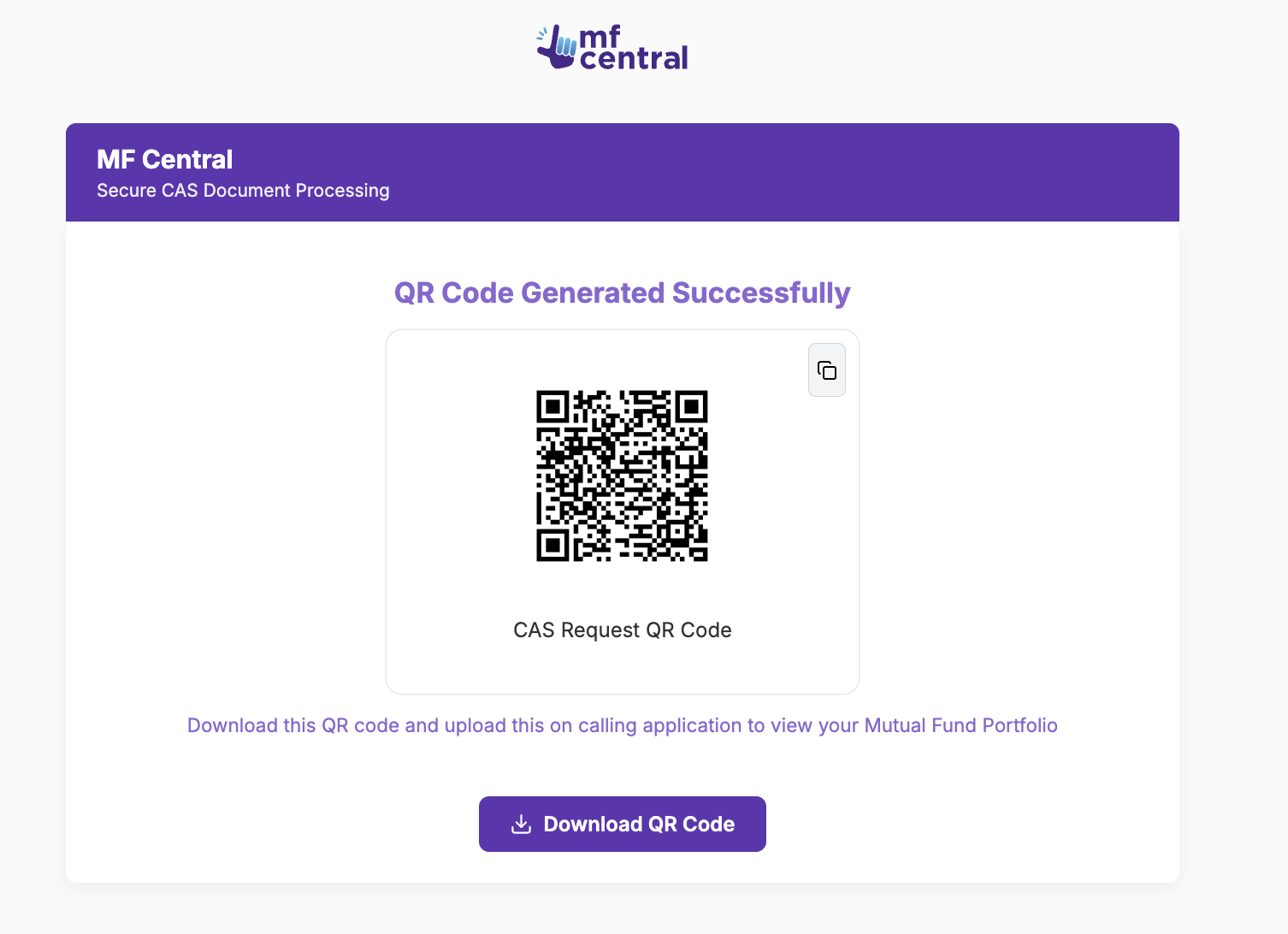
The QR code will be generated on the screen.
Download the QR code to your system.
6. Upload QR Code on Platform
Click 'Continue' after downloading the QR code.
The page will be redirected back to the platform.
Upload the downloaded QR code and click on 'Verify & Import' to complete the process.
A success message will be displayed, and the client’s external investments will be imported shortly.
7. Alternative Method (If Redirection Fails)
If the page is not redirected to the platform, follow the below navigation:
Partner Dashboard → Client Panel → Select Client → Mutual Fund → Holdings → (Top Right) Import CAS → Upload Existing QR
Please Note :
1. Only investments linked to the client's mentioned email ID, and with the registered PAN of the client can be imported. If no investments exists linked the client's PAN for the mentioned email, you will receive an error message.
2. For a particular email, import can be initiated only once in 24 hours from the last refresh time
Method 2:
MF import by CAS
If you want to import CAS to track external investments for your client, you can follow the below steps:
To track client investments under other ARN, a Consolidated Account Statement (CAS) must be generated for the investor. A Consolidated account statement (CAS) gives an investor all the details of his or her mutual fund holdings in an orderly manner in a single place. The generated CAS needs to be uploaded to track all the investments of the investors on their app.
Click on import via CAS upload
On Import via CAS Tab, click on Generate CAS.
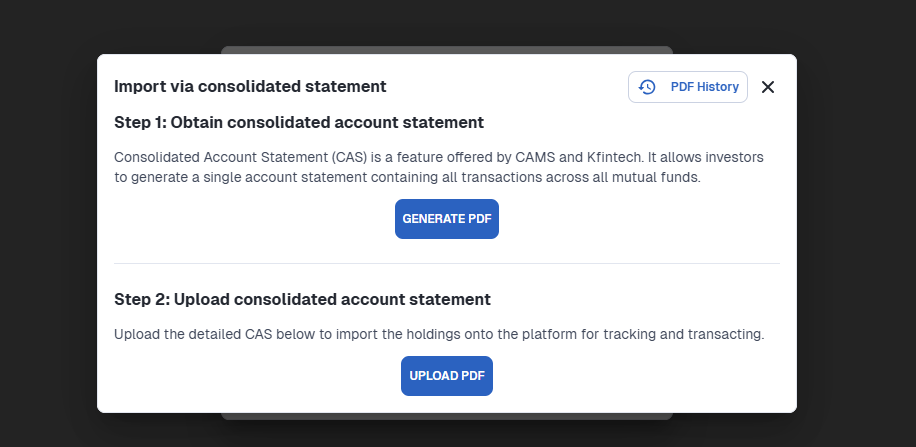
Now click the link on the tab, and it will be redirected to the CAMS website.
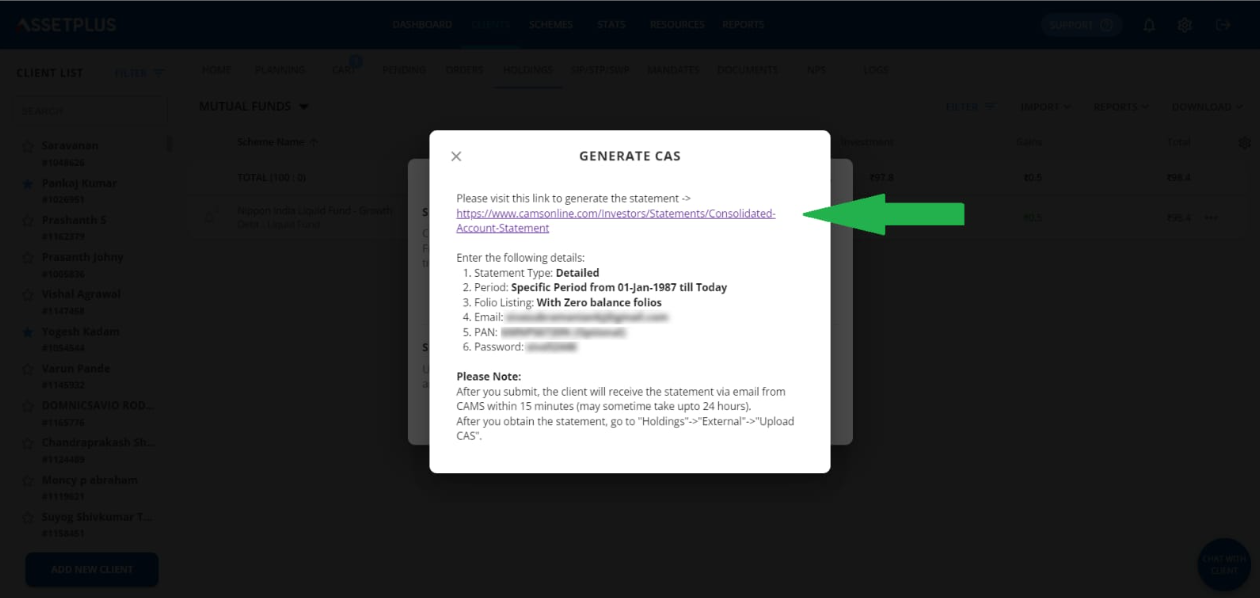
Steps to be followed on the CAMS page,
Statement Type: Detailed
- Period: Specific Period from 01-Jan-1987 till Today
- Folio Listing: With Zero balance folios
- Email: Enter the registered client's email ID
- PAN: GM*****720N (Optional)
- Password: cams123
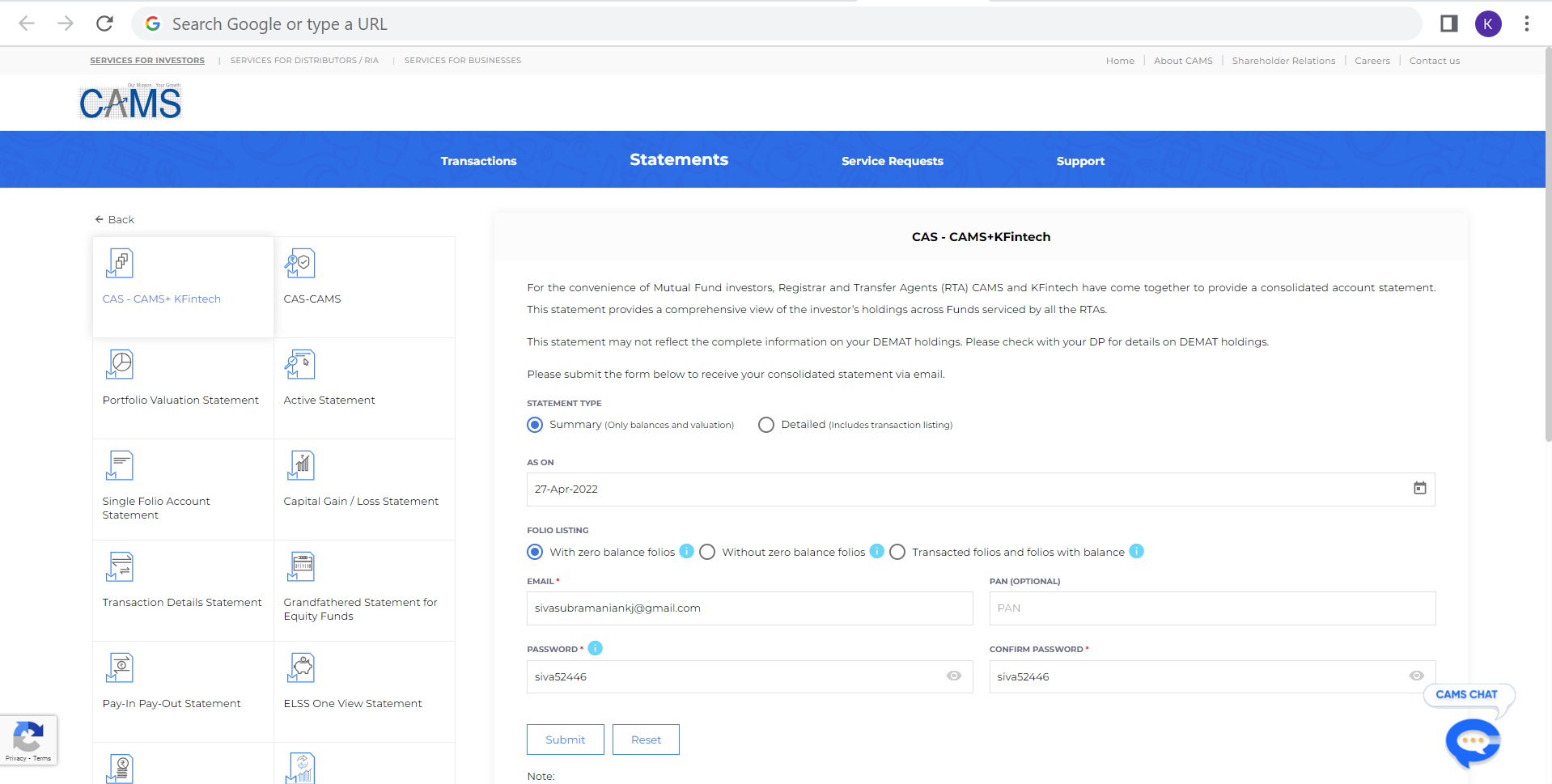
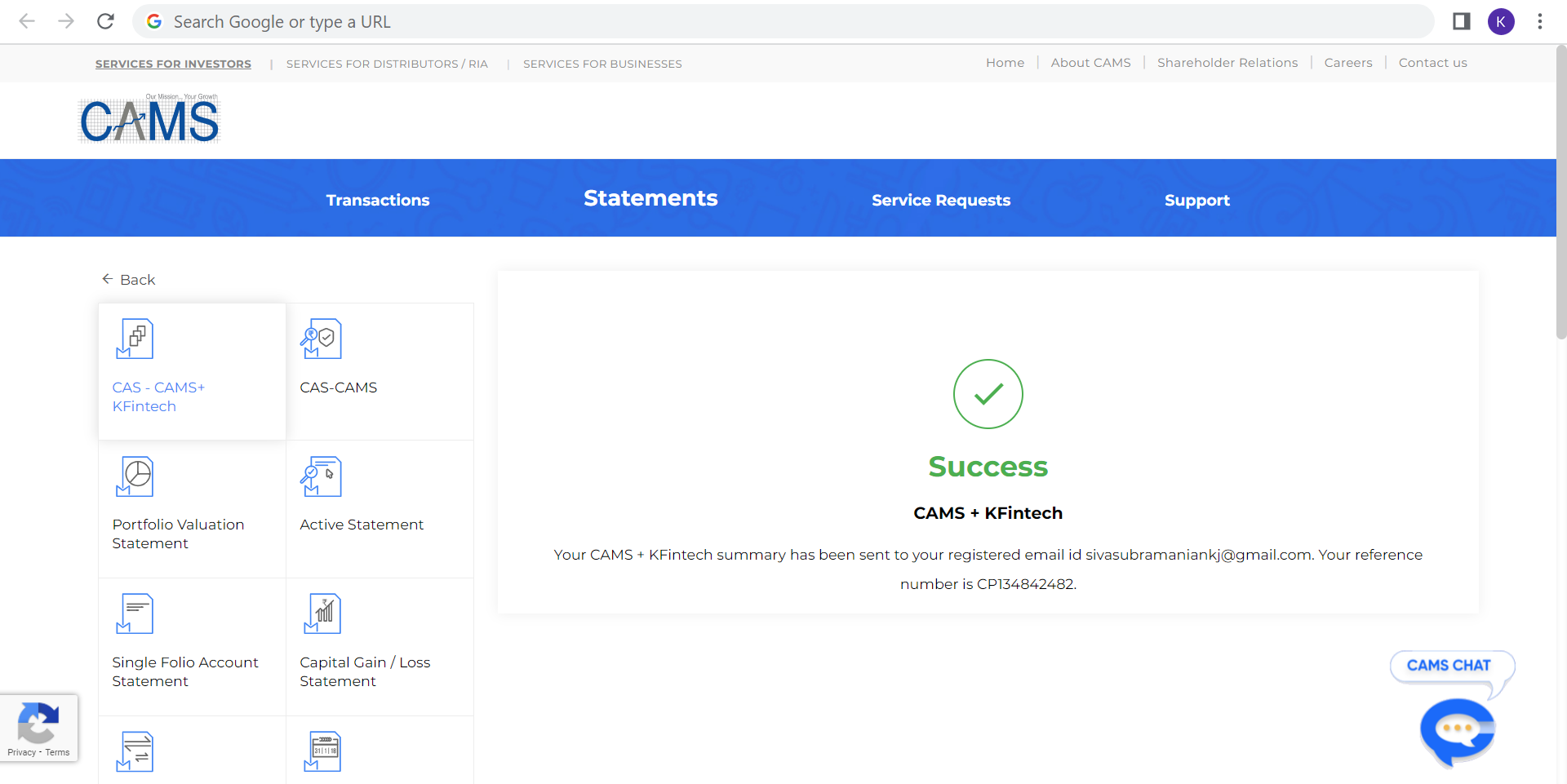
Now the client will receive the CAS on the registered email ID, once the client sends the CAS statement, we should Upload the CAS statement in Import via CAS Tab -> Upload CAS.
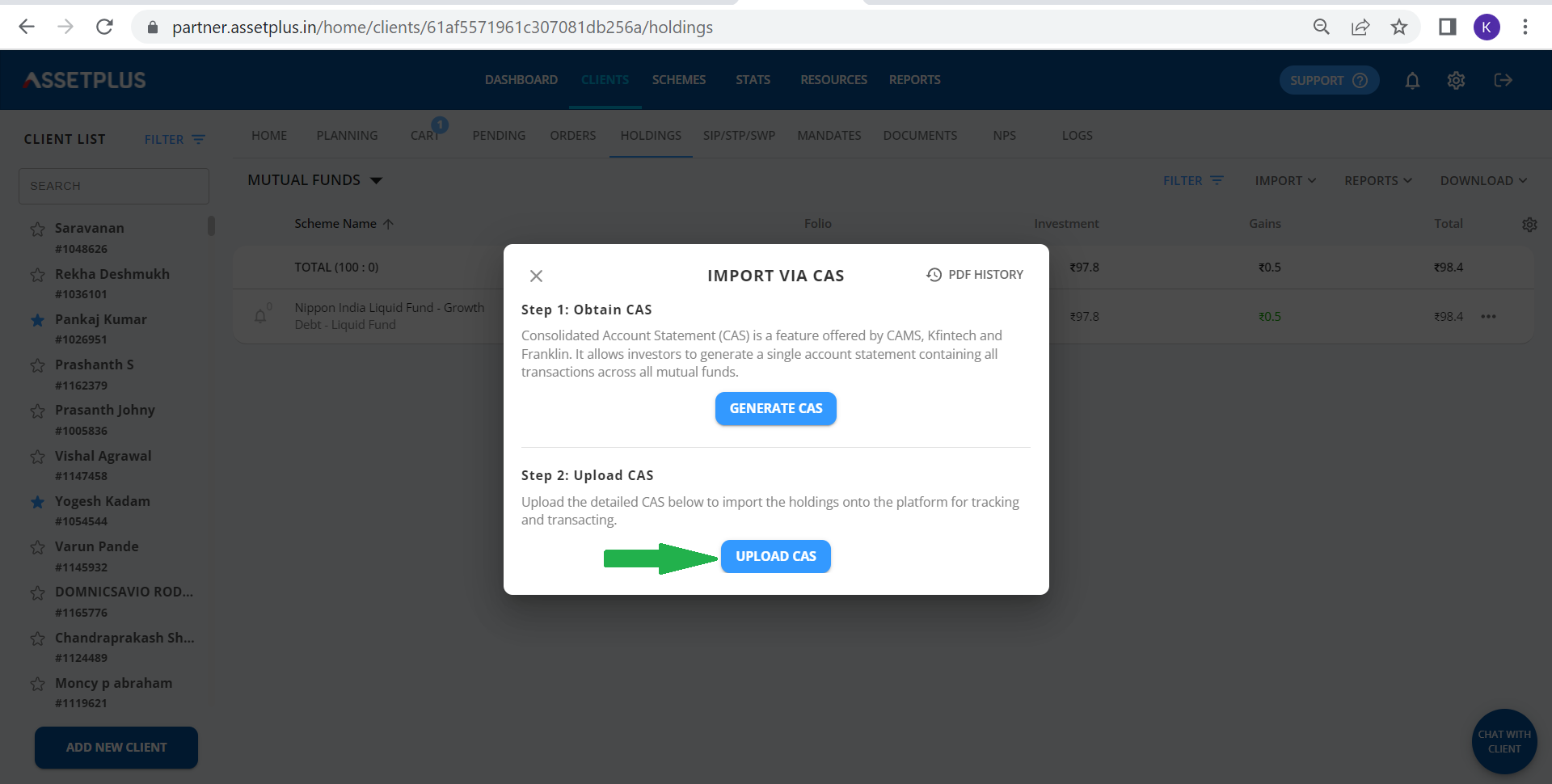
In the Upload CAS tab, select the Consolidated account statement received in the email then click on Upload.
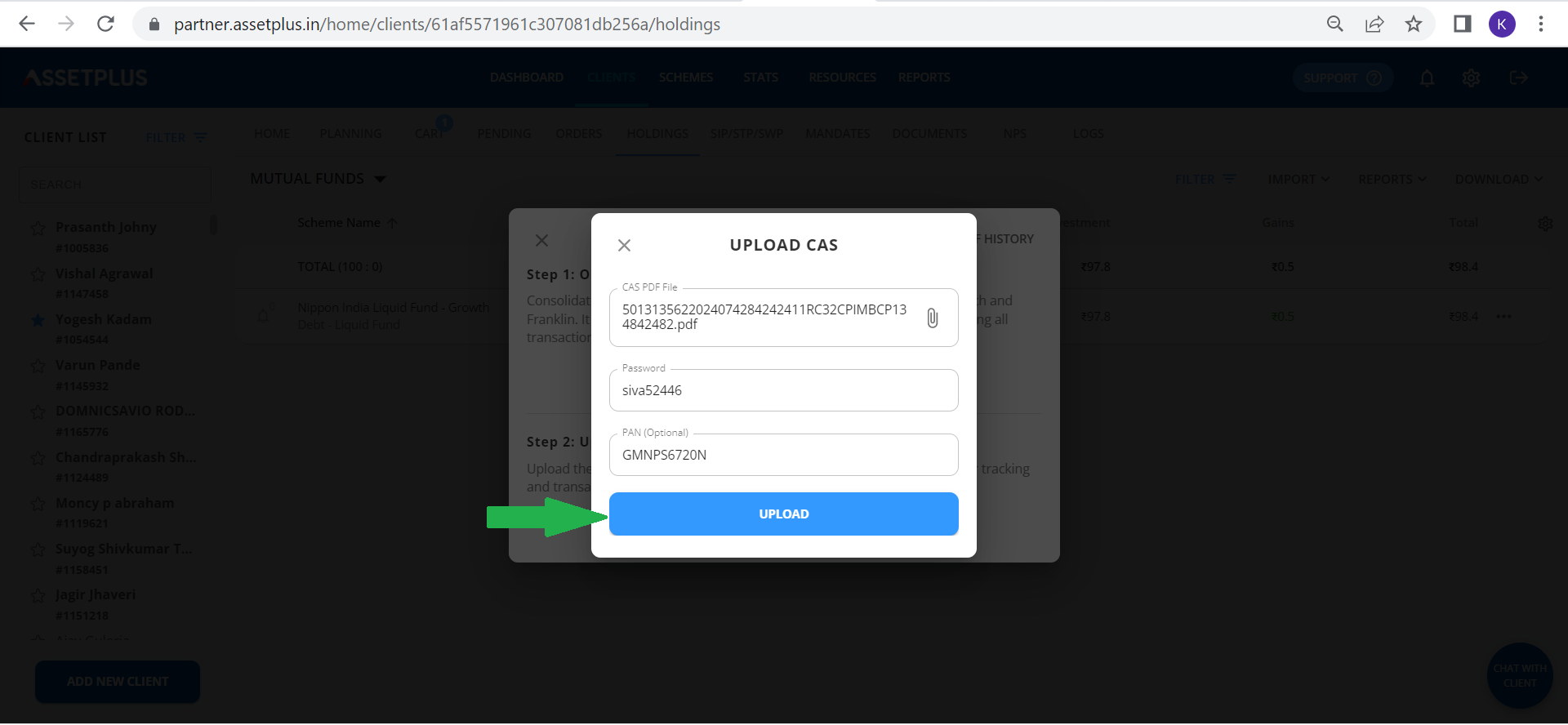
Once the CAS is uploaded from your end, the portfolio will be updated in the holdings section. Click on Holding -> Filters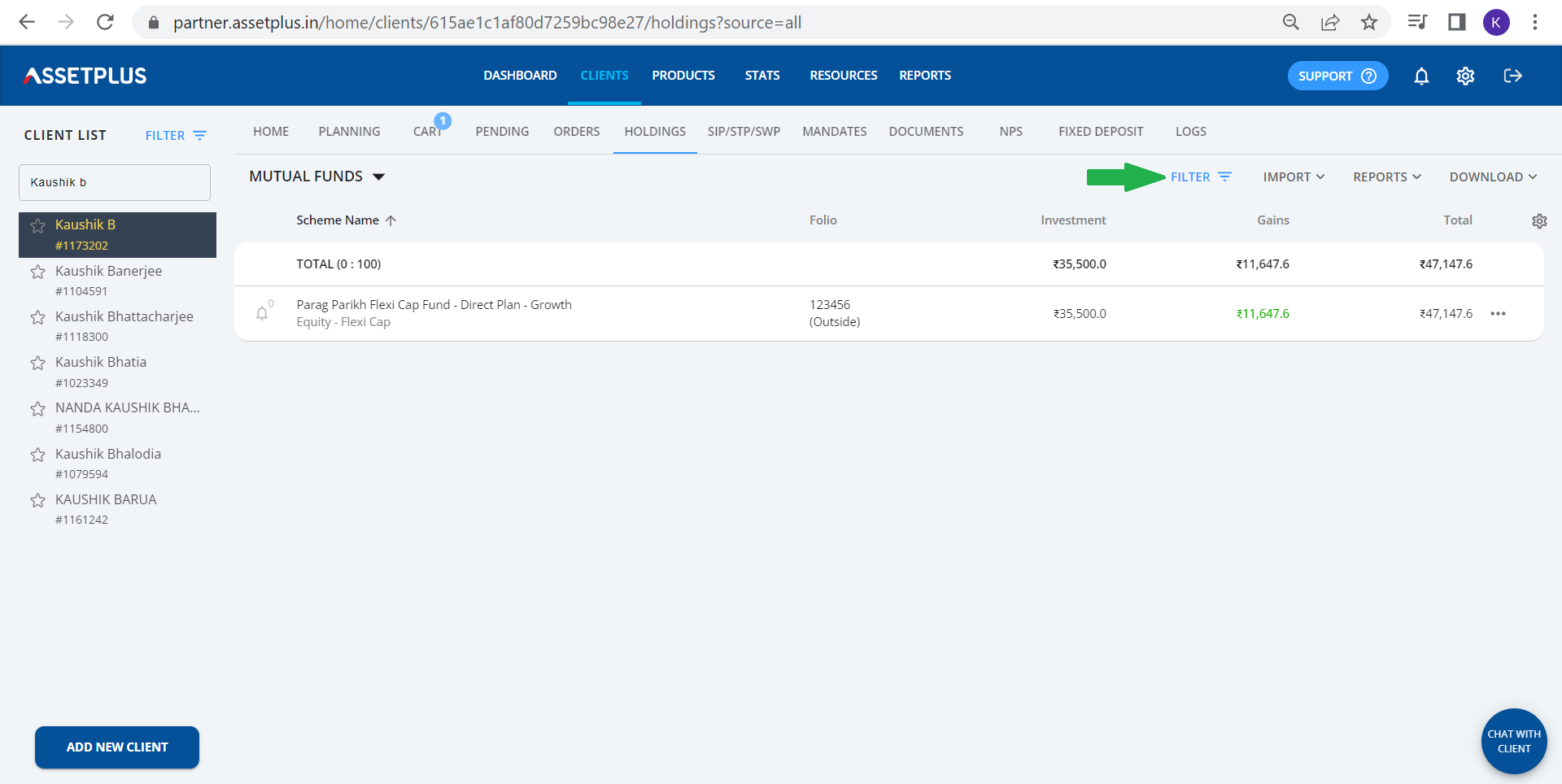
Once the filter section is opened, select Outside
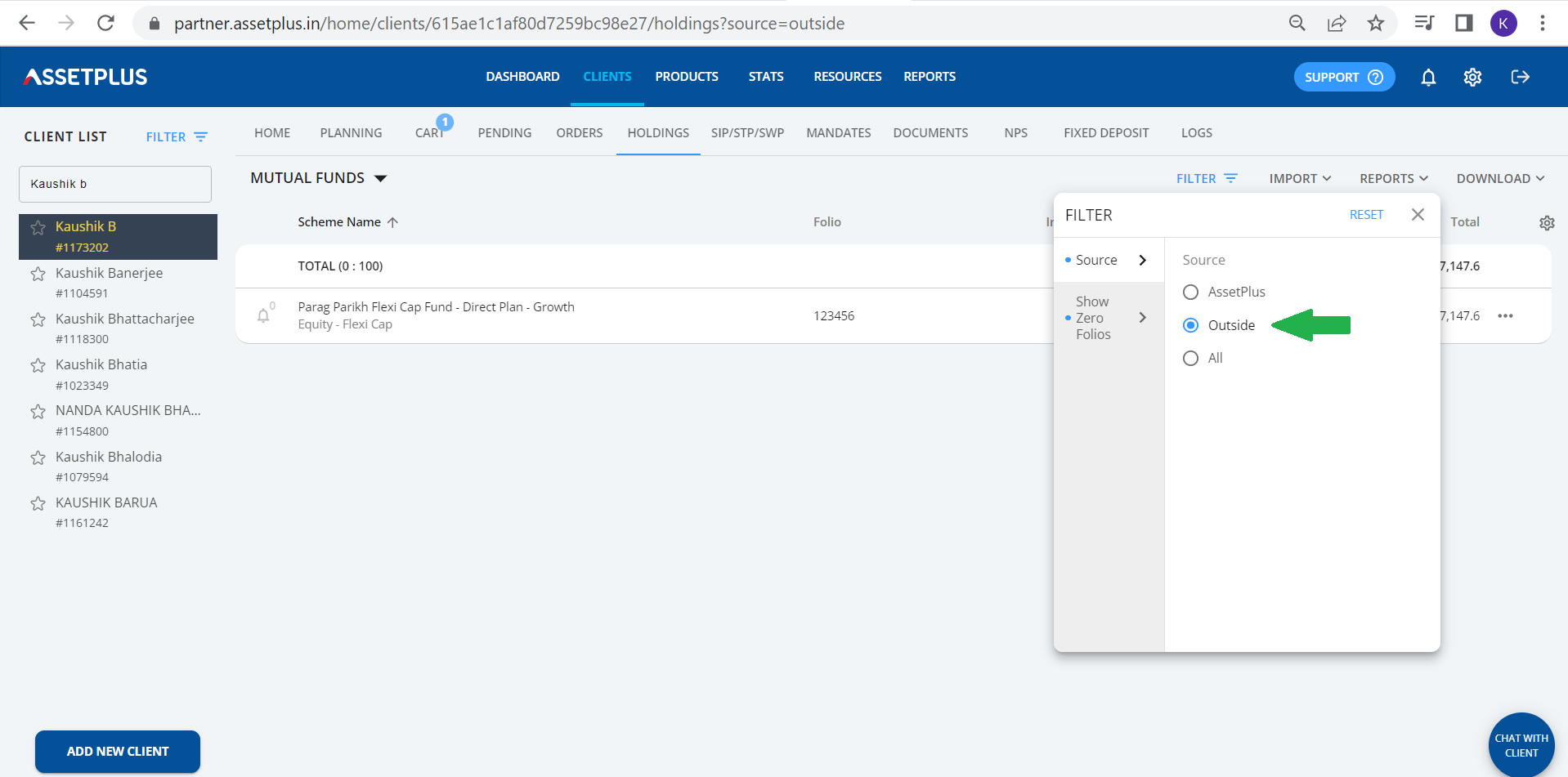
Here you can see the client's external holdings including other ARN investments